
How do I update my payment card?
Change the card for your website subscription on the Billing page.
You can update the card for a subscription you bought on the WhiteBridge website yourself, from the Billing page in your account. If Apple bills you, update your payment method through Apple instead.
Update your card on the Billing page
- Sign in to WhiteBridge with the account you used for your purchase.
- Open the account menu in the top-right corner and choose Billing, or go straight to search.whitebridge.ai/billing.
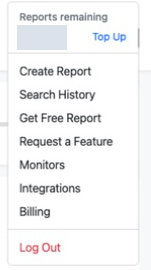
Open the account menu in the top-right corner and choose Billing. The credit balance is hidden. View full sizeCaptured 22 September 2026. - Select Manage Billing at the top of the Billing page. It opens a separate page with your plan and payment details.
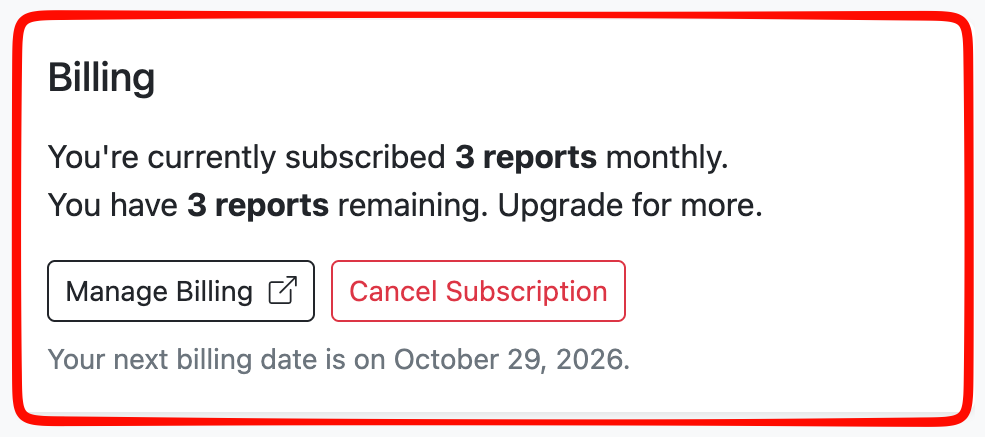
Select Manage Billing at the top of the Billing page. View full sizeCaptured 29 September 2026. - Under Payment methods, select Add payment method and enter your new card. Use the ⋮ menu beside a card for more options.
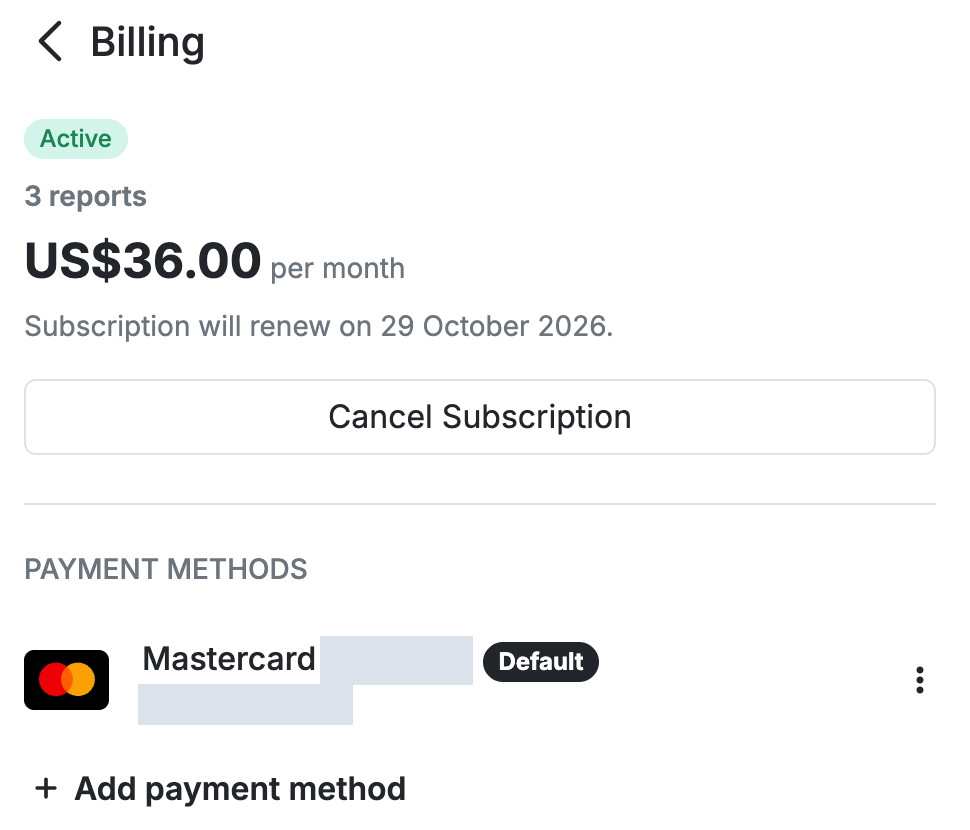
Manage Billing shows your plan and payment methods. The card details are hidden. View full sizeCaptured 29 September 2026.
References: WhiteBridge Billing page
Reviewed 29 September 2026