
How do I cancel my subscription?
Cancel a website subscription yourself from the Billing page, or ask our support team to do it.
You can cancel a subscription you bought on the WhiteBridge website yourself, from the Billing page in your account. If Apple billed you, cancel through Apple instead: see How do I manage a purchase billed by Apple?
Cancel from your Billing page
- Sign in to WhiteBridge with the account you used for your purchase.
- Open the account menu in the top-right corner and choose Billing, or go straight to search.whitebridge.ai/billing.
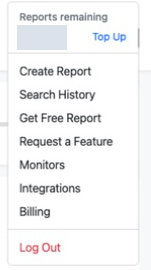
Open the account menu in the top-right corner and choose Billing. The credit balance is hidden. View full sizeCaptured 22 September 2026. - At the top of the Billing page, select Cancel Subscription.
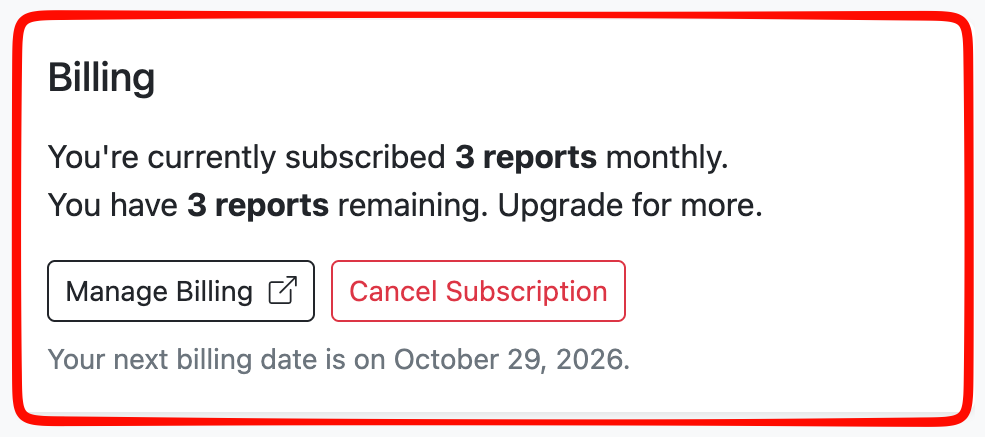
Cancel Subscription is at the top of the Billing page, next to Manage Billing. View full sizeCaptured 29 September 2026. - A page shows what canceling means. To confirm, select Cancel Subscription again. Keep My Plan keeps your subscription instead.
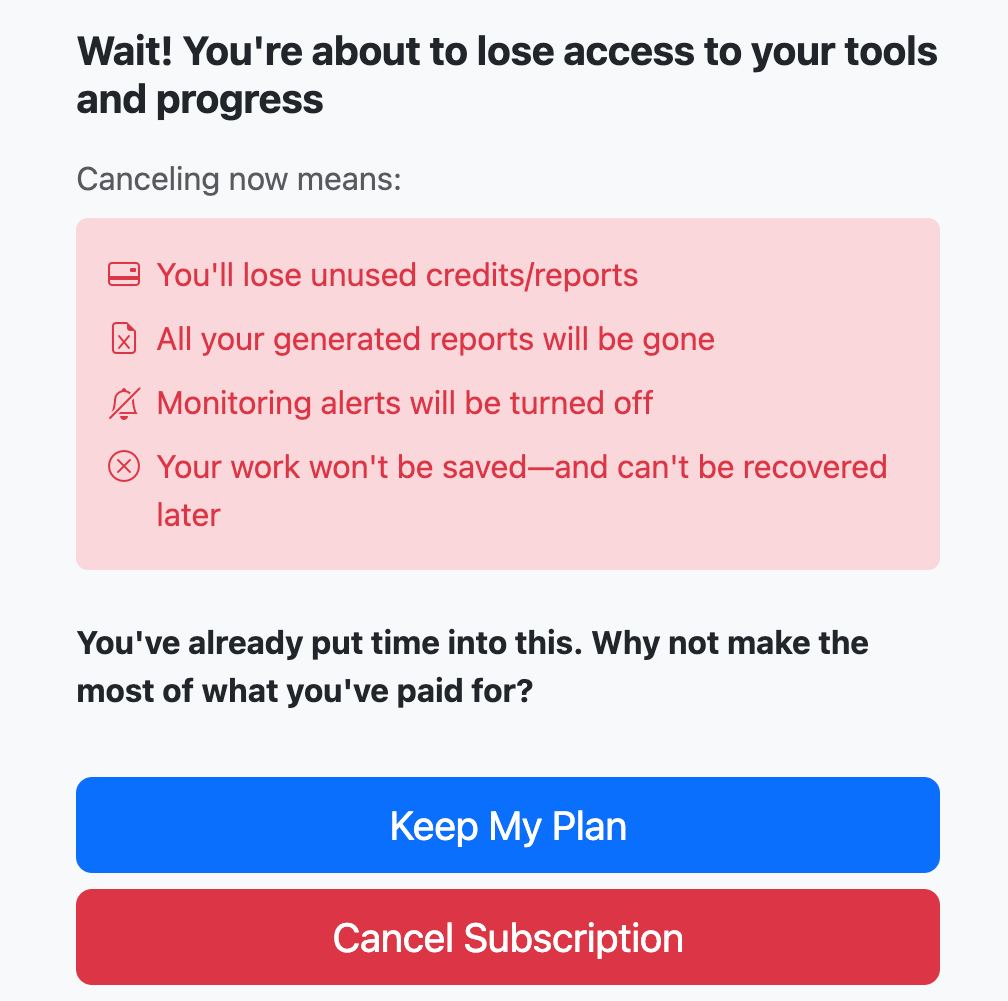
Select Cancel Subscription to confirm, or Keep My Plan to stay subscribed. Empty space on this page has been shortened. View full sizeCaptured 29 September 2026. - You will see Your subscription has been canceled. You will not be billed again, and your access stays active until the end of your billing period.
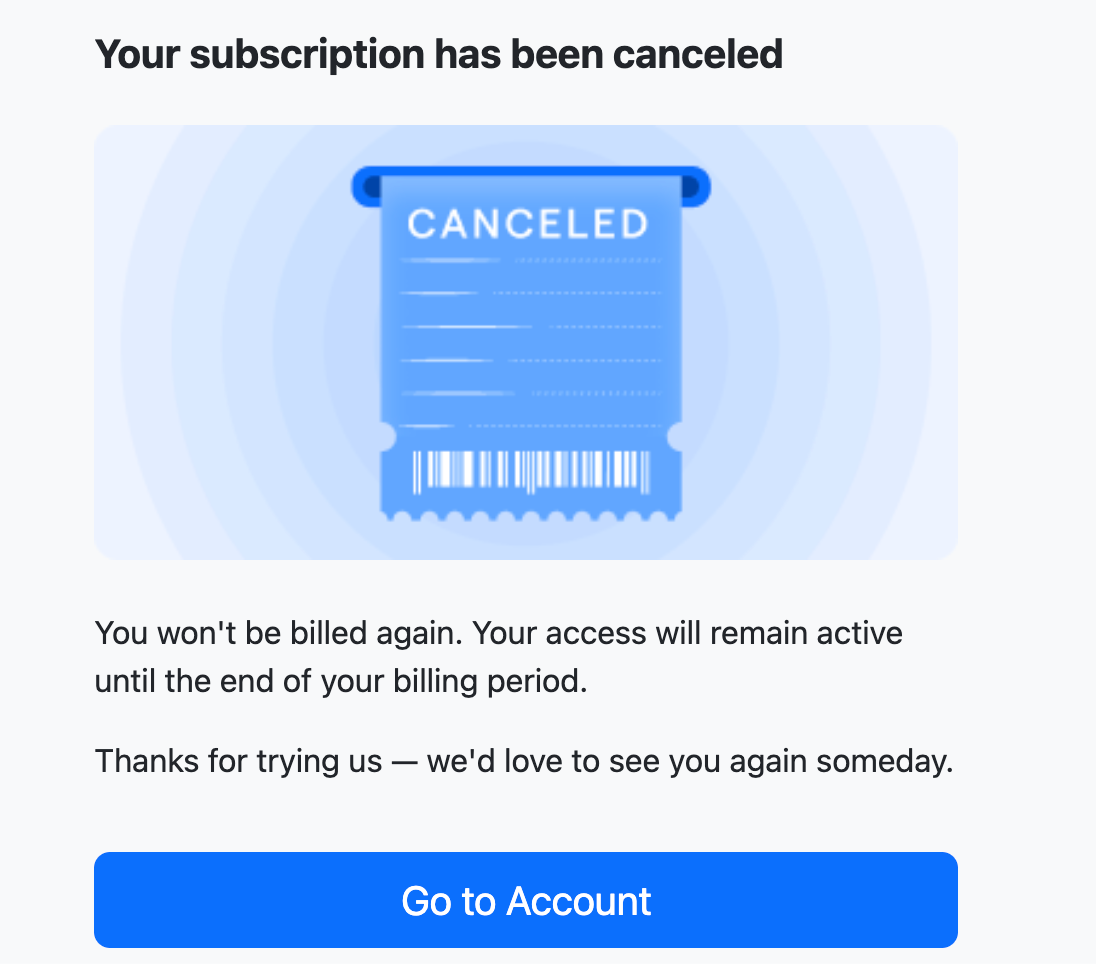
When you see this message, your subscription is canceled. View full sizeCaptured 29 September 2026.
Prefer to ask support?
Email help@whitebridge.ai from the address you used for your purchase and ask us to cancel your subscription. Include your Order ID, if you have it. If you are not sure whether a cancellation went through, contact support and ask them to confirm it.