
How do I connect WhiteBridge to another app?
Set up API access and send report results into your workflow.
Use the WhiteBridge API when another app or automated workflow needs to request and retrieve reports. Setting it up involves making HTTP requests, so you may need help from a developer. You do not need an integration to use the website or the iOS app.
Connect your account
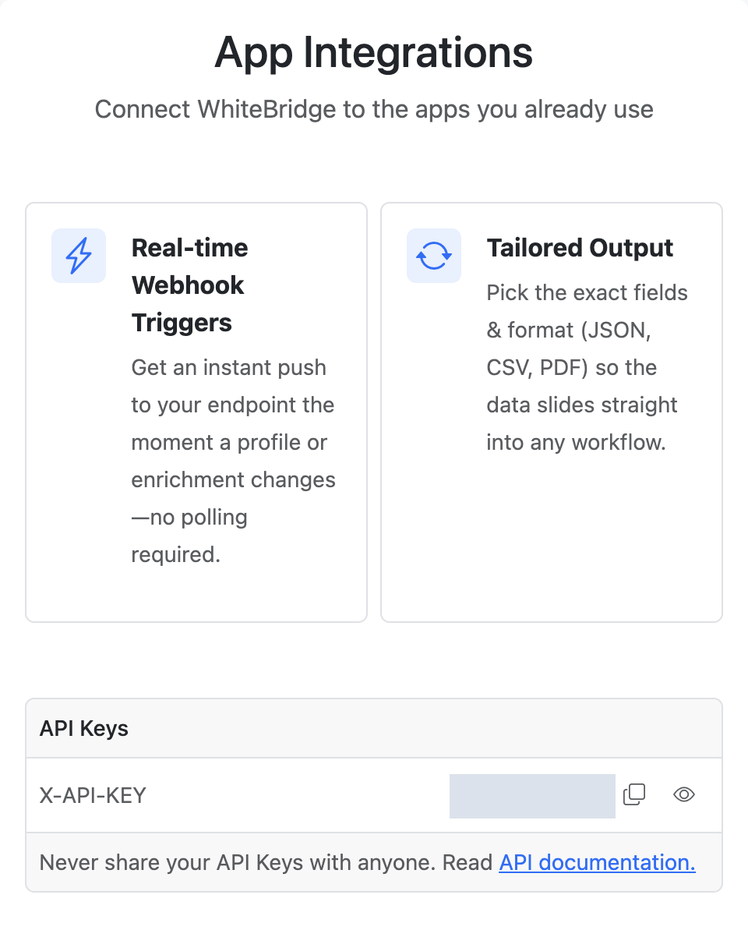
- Sign in to WhiteBridge, open the account menu, and choose Integrations, or go straight to search.whitebridge.ai/integrations. Find the API Keys section.
- Store your API key in your integration’s private credential storage. Keep it out of shared documents, screenshots, and public website code.
- Use
https://api.whitebridge.ai/as the base URL, and add the headerX-API-Key: YOUR_API_KEYto every request. - Test the connection with
GET /users/me. It returns your account information and does not create a report.
Build your report workflow
Use GET /search to find possible matches, and confirm that you have the intended person. Then create a report with POST /lookups, following the candidate and section requirements in the Create Lookup guide. A full lookup (preview: false) uses report credit, so check your balance before you set up automatic report creation.
To be notified when a report is finished, include your receiving endpoint as webhookUrl when you create the lookup. Retrieve the report as JSON with GET /lookups/{lookupId}, or use the PDF endpoint to get a download URL.
Choose your output
Choose the report sections you need when you create the lookup, then map the returned JSON fields to fields in your destination app. For CSV output or other customization, contact support to confirm what is available for your account.
Connection not working?
If authentication fails, check your API key and the X-API-Key header. A 429 response means you have reached a rate limit: wait for the next rate-limit window before retrying, and see the current rate limits. To ask about ongoing notifications when a profile changes, contact support about availability and setup.