
What should I do about an unexpected WhiteBridge charge?
Find out what the charge is for and who can help with it.
Your receipt shows who charged you and what the charge was for, so start there. If you still do not recognize the charge, our support team can look into it.
Check the charge
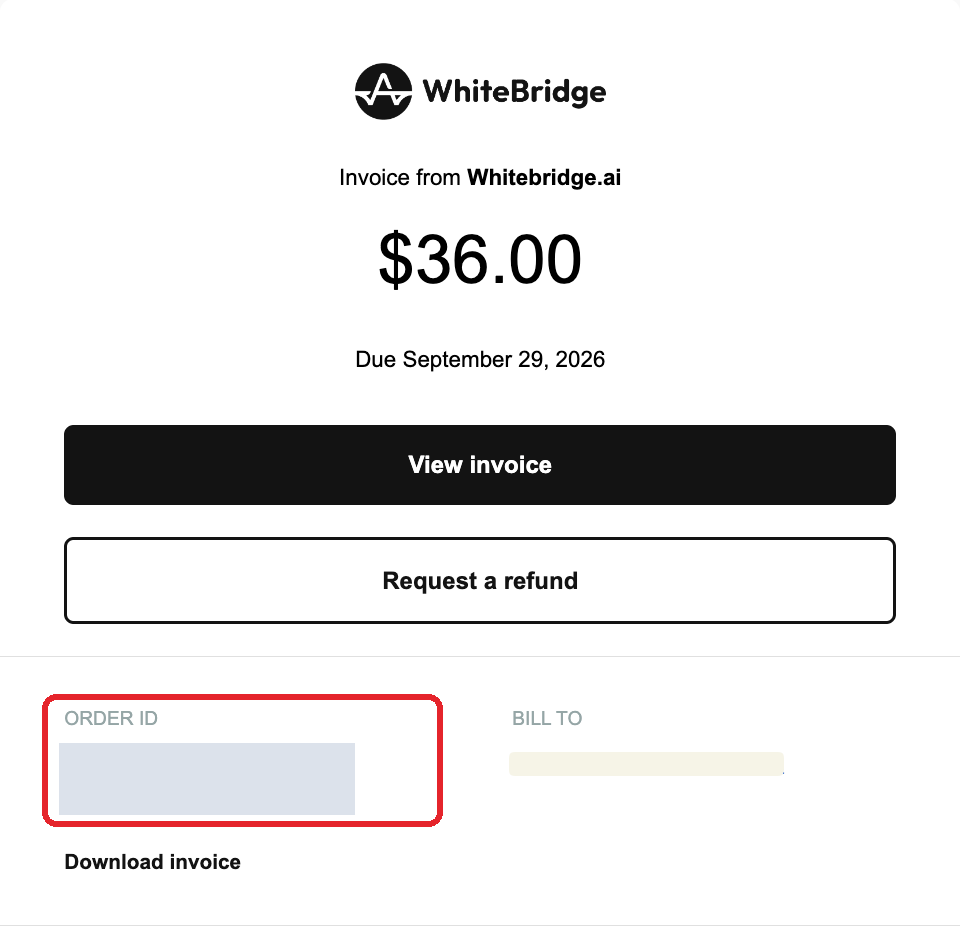
- Search your email for receipts from WhiteBridge or Apple. WhiteBridge invoices come from invoices@whitebridge.ai with the subject WhiteBridge – Invoice for Your Report Payment, and show your Order ID.
- Compare the date and amount on the receipt with the charge on your statement. Note whether your bank shows the charge as pending or completed.
- Sign in and check your subscription details on the Billing page, or open the billing portal.
- If you still do not recognize the charge, email help@whitebridge.ai from the address you used to purchase, with the details below.

What to include in your email
- Your Order ID, or a screenshot of the invoice. This is the fastest way for us to find your payment. You can find the Order ID in the email we sent when you paid.
- The last 4 digits of the card that was charged.
- The date of the payment.
- The payment amount.
We usually reply within a day or two, which is much faster than a bank dispute, which can take several weeks.
If the receipt is from Apple, follow our guide to purchases billed by Apple instead.
To stop future charges, cancel your subscription from the Billing page, or ask support to cancel it in the same email. Never send your full card number or banking passwords.
Contact supportReferences: WhiteBridge billing access · Apple purchase and refund help · WhiteBridge customer support
Reviewed 29 September 2026