
Where can I get a receipt or invoice?
Find your purchase records, or ask for help with an invoice.
VAT invoices for your purchases are available in your WhiteBridge account, on the Billing page.
Find your invoice
- Sign in, open the account menu in the top-right corner, and choose Billing.
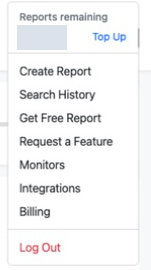
Open the account menu in the top-right corner and choose Billing. The credit balance is hidden. View full sizeCaptured 22 September 2026. - Scroll down to Invoices. Each purchase is listed with its date and status.
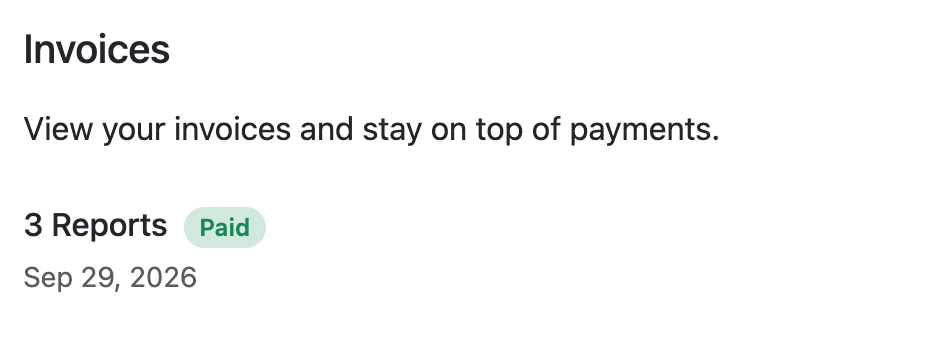
Each payment appears under Invoices with its date and status. View full sizeCaptured 29 September 2026. - To download an invoice, select Manage Billing at the top of the Billing page, then use the download icon under Invoice history.
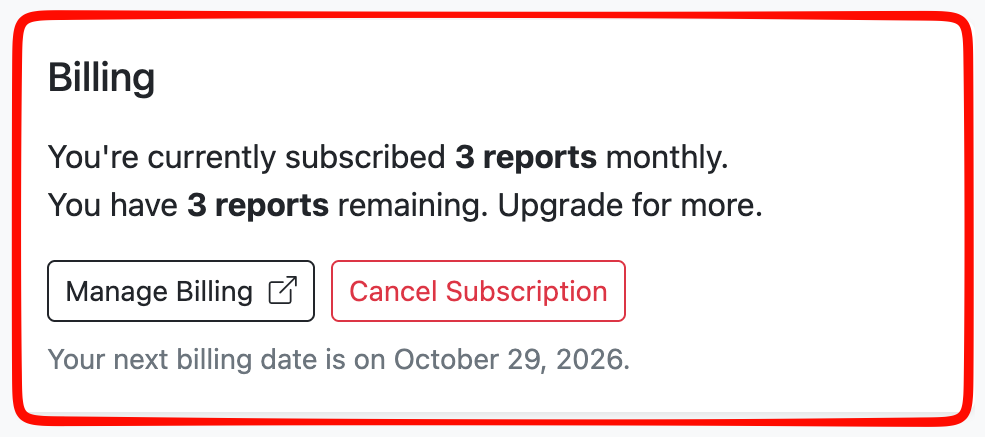
Manage Billing is at the top of the Billing page. View full sizeCaptured 29 September 2026. - You can also find every invoice in your email. Search for WhiteBridge – Invoice for Your Report Payment from invoices@whitebridge.ai, then choose View invoice or Download invoice.

Invoice emails come from WhiteBridge with the subject “WhiteBridge – Invoice for Your Report Payment”. View full sizeCaptured 29 September 2026. 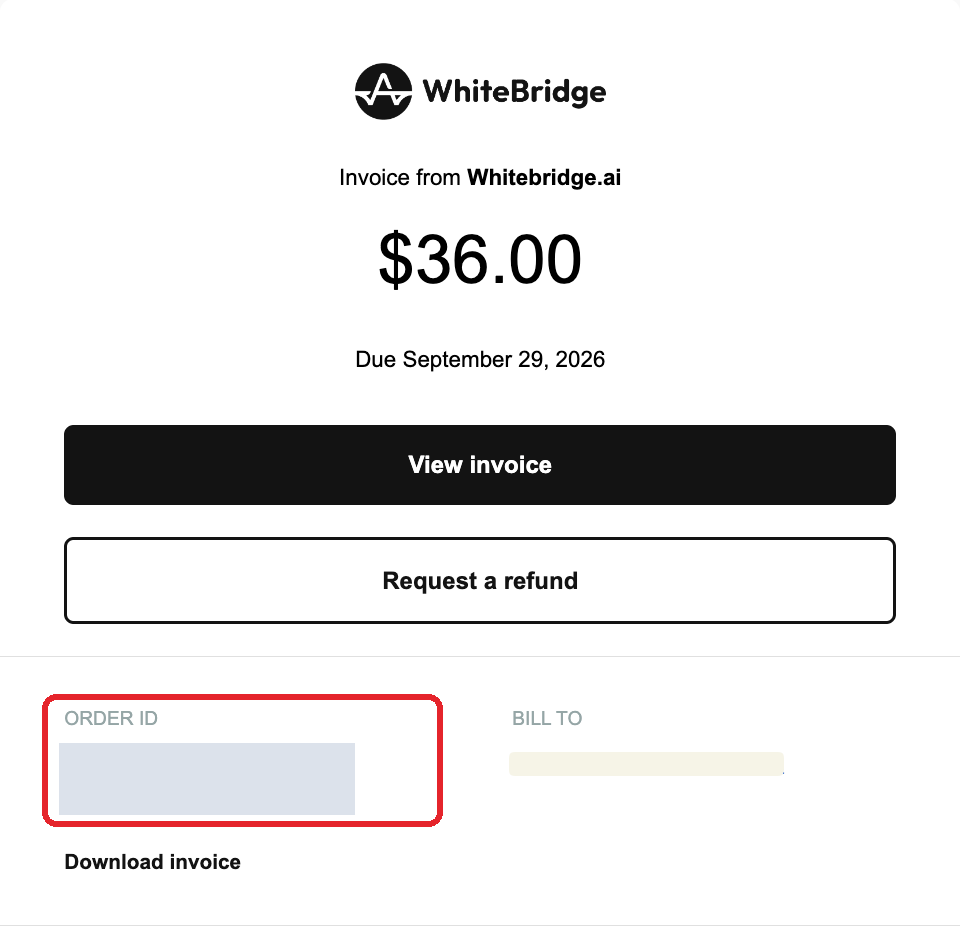
Your Order ID is under ORDER ID (outlined in red). The email also has View invoice and Request a refund buttons. The Order ID and billing details are hidden here. View full sizeCaptured 29 September 2026. - If an invoice is missing or needs correcting, contact support with your Order ID, the purchase date, and the correction you need.
For purchases billed by Apple, use your Apple receipt.
References: Terms of Service
Reviewed 29 September 2026